A few boxes and arrows can explain a process more clearly than a long paragraph. Mermaid lets you describe those boxes and arrows in text, then turns the description into a diagram.
The Pagelet Mermaid editor gives you a live preview, working examples and a way to share the result. You can write your own code, paste a Mermaid block from an AI chat, or start with an example and change its labels. There is no account needed to edit or download a diagram.
When you want a link, Publish diagram creates an HTML page containing the current preview. The person opening it does not need Mermaid, a plugin or an editor.
Start with a working diagram
Open the Mermaid editor. The code is on the left and the preview is on the right, or underneath on a phone. Live preview updates the diagram as you type. You can turn it off and use Render or Ctrl/⌘ + Enter instead.
Scroll to Small tips. Better diagrams. and click a preview. It loads the complete example into the editor and returns you to the code. Undo example brings back the draft you had before opening the example.
A Mermaid flowchart can start with three lines:
flowchart LR
    A[Write a draft] --> B[Review it]
    B --> C[Publish]
LR means left to right. Change it to TD to arrange the same flow from top to bottom. The letters A, B and C identify the nodes; the text inside the brackets becomes their visible labels.
Use the format that fits the job. A short process often works well as a flowchart. A conversation is easier to follow as a sequence diagram. A project with dates and dependencies calls for a Gantt chart.
Use colour to explain what a node means
Colour works best when it carries a consistent meaning. In this example, blue means work, peach marks a decision, and green marks success.

flowchart TD
    A[New idea]:::work --> B{Ready?}:::decision
    B -->|Yes| C[Launch]:::success
    B -->|Not yet| D[Improve]:::work
    classDef work fill:#e9eff6,stroke:#687f9b,color:#24354b
    classDef decision fill:#fff0d6,stroke:#ba9350,color:#604b28
    classDef success fill:#e4f3e8,stroke:#6e9e7c,color:#315b3d
classDef defines a reusable style. fill sets the background, stroke sets the border, and color sets the text colour. The :::work suffix applies the work style to a node.
Keep the words and shapes meaningful too. The decision is a diamond and its arrows say Yes and Not yet, so the diagram still makes sense without relying on colour alone. Use dark text on light fills and a small palette, rather than giving every box a different colour.
The editor also has Neutral, Classic, Forest and Dark themes. Explicit colours in your code can override the theme’s defaults, so check the preview after changing themes.
Group related work instead of making one long chain
A diagram gets harder to scan when every step looks equally important. Use subgraph to put related steps into named groups.

flowchart LR
    subgraph Create
      A[Idea] --> B[Draft]
    end
    subgraph Deliver
      C[Review] --> D[Publish]
    end
    B --> C
    style Create fill:#f3f0f8,stroke:#b2a3c7
    style Deliver fill:#e9f4ed,stroke:#8db39a
Each end closes a group. The final B --> C connects the draft step to the review step across the two groups.
Keep labels short. If a box needs a paragraph to explain it, put the detail in the surrounding document and let the diagram show the relationship. For an especially large process, split it into separate diagrams rather than shrinking everything until the labels become unreadable.
Show conversations with a sequence diagram
A flowchart tells you where a process goes. A sequence diagram shows who sends a message, to whom, and in what order. It is useful for sign-in flows, API requests and handoffs between people or systems.
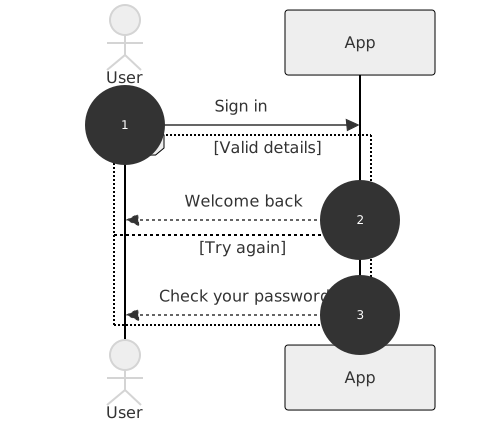
sequenceDiagram
    autonumber
    actor User
    participant App
    User->>App: Sign in
    alt Valid details
        App-->>User: Welcome back
    else Try again
        App-->>User: Check your password
    end
autonumber adds step numbers, making the diagram easier to discuss: “What happens after step 1?” The alt and else block shows alternative outcomes. The labels describe the example; the diagram itself does not implement a sign-in system.
Use a timeline when dates and dependencies matter
For a launch plan, a Gantt chart makes the schedule visible. Give tasks IDs so later tasks can depend on them with after.
gantt
    title A small launch plan
    dateFormat YYYY-MM-DD
    section Prepare
    Research :research, 2026-11-02, 3d
    Design :design, after research, 4d
    section Ship
    Build :crit, build, after design, 5d
    Launch :milestone, after build, 0d
Here, design follows research, build follows design, and the launch is a milestone. crit highlights the build task. The dates and durations are sample values, so replace them with your actual plan.
Try the launch timeline in the editor. For a lifecycle without dates, such as Draft → Review → Published, try the state diagram example.
A few habits that prevent Mermaid errors
- Keep IDs simple. Use short IDs such as
draftandreview, then put readable text inside the brackets. - Quote awkward labels. For example,
A["Review (design + copy)"]keeps punctuation inside a quoted label. - Close what you open. Check brackets and the
endlines that close groups or sequence blocks. - Check the diagram header. Start a flowchart with
flowchart, a conversation withsequenceDiagram, or a schedule withgantt. - Change one thing at a time. A small working example is easier to fix than a large diagram pasted all at once.
If you copy a Mermaid Markdown block from ChatGPT, Claude or a README, you can paste the whole block, including its opening and closing code fences. The editor recognises a block labelled mermaid.
When the code has an error, Pagelet shows the message and dims the previous preview. Download and publish controls stay disabled until the current code renders successfully, so you do not accidentally share an older diagram.
Explore Mermaid syntax with editable examples for flowcharts, sequence diagrams and Gantt charts.
Choose a download or publish a page
.mmd text file. Keep this if you want to change the Mermaid source later.To publish, render your diagram, add an optional title under Give your diagram a link, and press Publish diagram. Pagelet uploads a self-contained HTML page with the current diagram embedded as an image. Viewers can open the page in a browser without loading the Mermaid library.
Open a complete example diagram page. This example shows the kind of HTML page the editor creates; publishing your own diagram gives it its own hosted link.
The published page is a snapshot of that preview. Further edits in the tool do not update an existing link; publishing again creates another page. Keep the .mmd file if you want to preserve your editable source.
Editing and local drafts stay in your browser. Publish diagram makes a public page, so remove private information before sharing it. Guest pages that remain unclaimed are removed after 30 days. Sign in from the same browser after publishing to claim and manage yours.