A website has several titles. The browser tab uses the HTML <title>, a heading introduces the page’s content, and a social app can use og:title when someone shares the link. Each serves a different purpose.
Pagelet’s visual editor now includes Page settings for the browser-tab title, description and social sharing metadata. You can edit them while looking at your page and preview how the titles will appear. The free Open Graph Checker reads those tags from any public website URL.
Change the title in the browser tab
Open your site in the Pagelet dashboard and choose Edit. The Page settings panel appears beside your page. Use the toolbar’s Page settings button to show it again if you have closed it.
- Enter the new name in Browser-tab title.
- Review it in the panel’s Browser tab preview.
- Press Save in the editor toolbar.
- Wait for the publication’s security checks to finish, then open or reload your published page.
The editor updates your existing publication at its current address. A connected custom domain continues to point to that publication.

Set a description and social preview
Use Page description to write a short introduction to the page. In Social preview, enter the title and description you want people to see when they share your link. Add a public image URL in Preview image URL.
The preview updates as you type. It approximates a sharing card, and uses the browser title and page description as fallbacks when the social fields are empty. Each social app chooses its own layout, text length and image crop.
Open More sharing tags to edit the sharing URL, page type, site name, image description and X / Twitter card fields. For a general website, website is a suitable page type. Use an absolute HTTPS image URL so sharing services can find the image.
The Open Graph protocol defines og:title, og:type, og:image and og:url as its basic properties. It also supports a description, a site name and structured image properties. Open Graph protocol specification
The following fields control these parts of a page.
<title> names the page in its browser tab.meta name="description" provides a summary of the page.og:title supplies the title for services that read Open Graph metadata.og:description supplies the sharing card’s summary.og:image points to the image used in the sharing card.og:url identifies the page’s preferred address for social sharing.Check a published URL for free
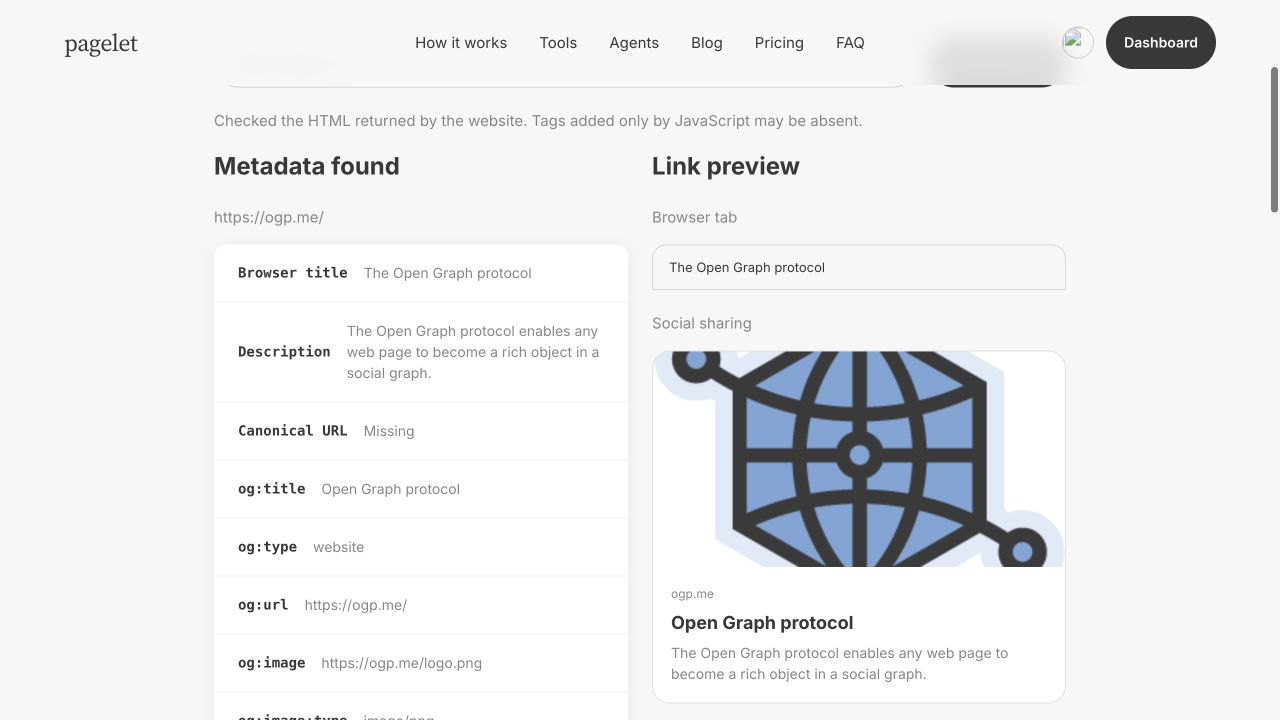
The Open Graph Checker reads the HTML returned by a public URL and shows its browser title, description, canonical link, Open Graph properties and Twitter card tags. It lists repeated tags individually, highlights missing metadata and warns about duplicate titles.
- Open the checker from Pagelet’s tools page.
- Paste the complete public URL of the page.
- Choose Check preview.
- Compare the metadata with the browser-tab and social sharing previews.
You can use the checker without signing in. It accepts public HTTP and HTTPS pages on standard ports, with a 2 MB page limit, a 12-second timeout and up to 30 checks per visitor per hour. Open Graph Checker
When the preview still shows an old title
Start by checking the published URL again. If the checker still finds the old title, confirm that the editor saved successfully and that you checked the correct page. A website or its CDN may also serve a cached copy for a while.
If the checker shows the new tags but an app still shows an older card, that app may have a cached preview. Allow time for it to refresh, or use its sharing debugger if one is available. Changing a tag cannot force every app to refresh a message that has already been sent.
The checker reads the HTML response. Tags created only after JavaScript runs may be absent from its results. A password-protected page or a website that blocks automated requests can also prevent a check.
Add tags to an HTML file
You can also edit the metadata directly in your page’s <head>. This example uses different wording for the browser tab and social card.
<title>Example Studio — Classes and workshops</title>
<meta name="description" content="Small-group classes and creative workshops at Example Studio.">
<meta property="og:title" content="Find your next creative workshop">
<meta property="og:description" content="Explore upcoming classes at Example Studio.">
<meta property="og:type" content="website">
<meta property="og:url" content="https://example.com/">
<meta property="og:image" content="https://example.com/workshop.jpg">
<meta property="og:image:alt" content="A workshop table with art materials">
Replace the example text and URLs with your own. The Meta Tags Generator can prepare a starting set of SEO and sharing tags for an HTML file. Meta Tags Generator